Mobile Printing at the Library
You can print from anywhere on any device, including your personal computer and mobile device, to the library’s printers. Follow these instructions to submit your document for printing. Then visit the library to release and pick up your document.
Effective October 5, 2021, the following rates will apply to printing and copying at the library. View our fee structure for details.
How to send your print job to the library printer
1. Select your desired library location from the drop down list below:
2. Select the printer and enter your email address.
3. Browse your computer to find and select the file you wish to print.
4. Click on the green print icon
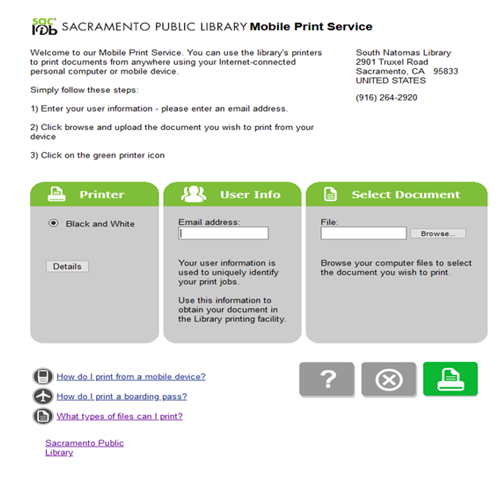
5. You will see the status of your print job and reference number.
How to print your job inside of the library
1. At the Print Release Station in the library, select “Release a Print Job.”
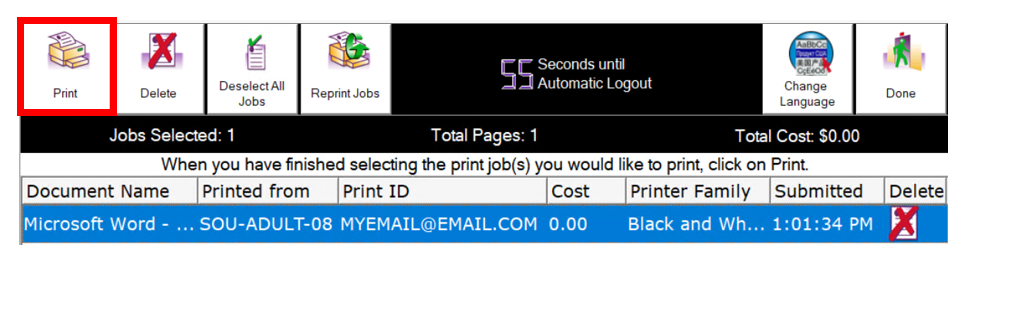
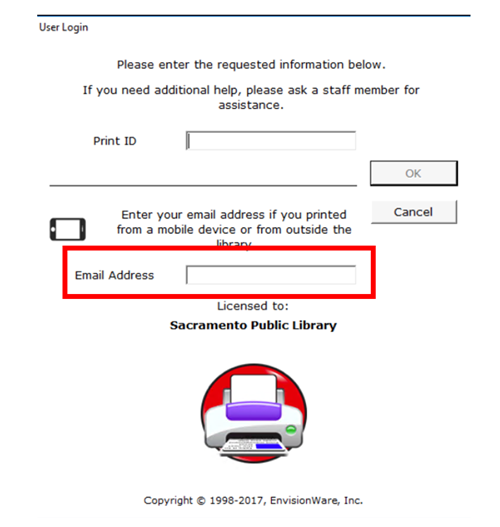
2. Enter the email address you supplied and select your print job.
3. Pick up your document at the printer.
Cómo imprimir de un portátil en la Biblioteca Pública de Sacramento
Как распечатать ваши документы с ноутбука
如何從筆記本電腦上打印
نحوه چاپ از کامپیوتر لپ تاپ تان
Is there a charge for printing?
Yes. Printing at the library is $0.15 per page. Please note that printing is limited to black and white only.
Is wireless internet filtered?
Wi-Fi access at all Sacramento Public Library locations is filtered.
Is there a charge for using the Wi-Fi?
No, there is no charge to connect to wireless access at the library.
Contact Us